Glbtomold
Add Model
English

File workflow

A practical walkthrough: how to import glb files into blender

This guide shows how to import glb files into blender using its built-in glTF importer, then check what arrived before you start editing. Blender handles the import; Glbtomold’s linked industrial studio is a separate destination, not a substitute for Blender’s File menu.

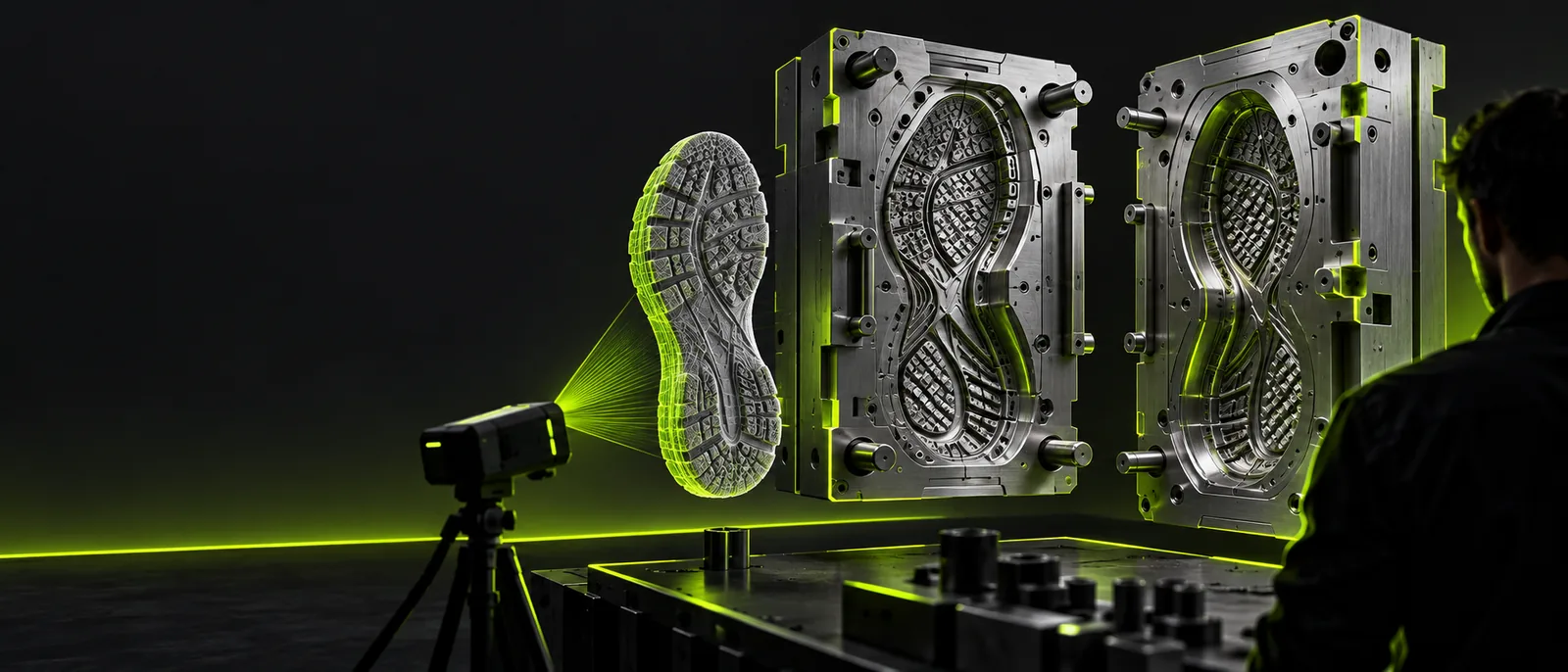
Glbtomold 3D workflow illustration

File caveats to check first

The import command opens a scene; it does not guarantee that every asset is immediately ready for editing or fabrication. Keep the original GLB so you can retry with different settings.

1

Import cannot repair missing source data

If the GLB contains no usable mesh, Blender cannot reconstruct the intended object from its filename or preview image. Inspect the Outliner after import before assuming the object is merely hidden.

What to do instead

Ask for a new export from the source project, or check the original file in another glTF viewer.

2

A visible model is not necessarily watertight

Scene assets can contain open edges, overlapping surfaces, or several separate meshes. Importing them does not turn them into a printable solid or a mold-ready cavity.

What to do instead

In Edit Mode, inspect mesh connectivity and normals; run geometry checks appropriate to your intended manufacturing process.

3

Materials may need review

A GLB may carry textures and material properties, but the viewport display depends on shading mode and the material data in the file. A gray Solid-mode view alone does not prove the textures failed.

What to do instead

Switch to Material Preview, inspect the material nodes, and compare the result with the source application.

4

Import is not conversion to another format

Opening a GLB in Blender creates scene objects. It does not automatically write an STL or OBJ file, and exporting to either can discard scene information that the destination format cannot represent.

What to do instead

Finish your edits, select the intended objects, then choose the required format from Blender’s File → Export menu.

numbered steps

Use Blender’s glTF importer rather than the generic Open command. Save your Blender project separately if you want to preserve edits without overwriting the source asset.

  1. 1

    Open the glTF import dialog

    Launch Blender and choose File → Import → glTF 2.0 (.glb/.gltf). In the file browser, navigate to the folder containing your GLB. If the entry is missing, confirm that you are looking under Import rather than Open and that you are using a Blender installation with glTF support.

  2. 2

    Select and import the file

    Choose the .glb file and click Import glTF 2.0. Blender may add multiple objects, including meshes, cameras, lights, or an armature, depending on what the source contains. This is the core action in how to import glb files into blender; no intermediate OBJ or STL export is required.

  3. 3

    Locate and inspect the result

    Check the Outliner for newly added objects. Select an imported mesh there, then use Frame Selected to bring it into view. Try Material Preview to assess appearance, and inspect dimensions, orientation, object hierarchy, and any animation before making changes.

  4. 4

    Save an editable working copy

    Choose File → Save As and store a .blend project under a new name. That project preserves your Blender scene and subsequent edits; it is not the same thing as replacing the original GLB. Export a fresh GLB later only if your next application needs one.

common errors and fixes

Use this comparison to distinguish an import problem from a display or source-file problem. Check the Outliner first: it tells you whether Blender added objects at all.

What you observe What to check or do
Import option seems absent The expected GLB entry is not visible under File → Import. Look for glTF 2.0 (.glb/.gltf), not a menu item named only GLB. Confirm your Blender version and installation.
Empty-looking viewport The import finishes, but nothing appears near the current view. Select an imported object in the Outliner and use Frame Selected. Check whether the object or its collection is hidden.
Model looks tiny or huge The object is present, but its apparent size is unexpected. Inspect dimensions and scale in the Item panel. Compare them with the units expected by the source and destination workflows.
Surface appears gray Colors or texture details are not visible in Solid shading. Switch to Material Preview and inspect the material. If it still looks wrong, verify that the source GLB contains the expected data.
Parts appear disconnected The Outliner shows several imported objects rather than one mesh. Check the source hierarchy before joining anything. Separate parts may carry distinct materials, transforms, or animation.
Geometry looks reversed Some faces disappear or shade unexpectedly. Inspect face orientation and normals in Blender. Correct the affected mesh only after checking whether the source export has the same issue.
Animation seems missing The model imports, but no motion plays in the current view. Check whether the source GLB contains animation, then inspect imported actions and the timeline before concluding that import failed.

advanced tips

What you do after import depends on the destination. Work on a saved copy, make one change at a time, and test an export in the application that will actually use it.

3D-printing preparer

You need geometry from a visual asset for a print workflow. First inspect disconnected parts, open boundaries, wall thickness, and dimensions; an attractive render does not establish printability.

Export only the intended mesh once it passes your checks. The glb to stl guide explains why STL will not carry the GLB’s materials or animation.

glb to stl

Cross-application artist

Another modeling package expects OBJ. Confirm which imported objects you need, preserve a .blend working file, and review materials before changing formats.

The glb to obj guide covers the format trade-off; an OBJ export should be tested in the receiving application rather than judged by its filename.

glb to obj

Scene editor

You want to adjust an imported asset without losing its structure. Keep the original GLB untouched while you inspect the Outliner, edit mesh data, and verify materials or animation.

For background on what the container can hold, what is a glb file helps explain why a single import can create more than one Blender object.

what is a glb file

Continue your 3D workflow

Blender is the place to follow the import and editing steps above. If your next task is exploring an industrial 3D workflow, Glbtomold links to a separate studio. Check that destination’s available tools and file support before relying on it for a particular GLB or mold task.

Explore another 3D workflow

  • Keep your original GLB before editing
  • Verify geometry in Blender before fabrication
  • Check destination file support independently
Explore industrial studio

tutorial FAQ

These answers cover the editing question raised alongside this tutorial and the checks most directly connected to the import steps.

Import the GLB through File → Import → glTF 2.0, then select a mesh in the Outliner and use Blender’s Object Mode or Edit Mode as needed. Save a .blend working copy before changing geometry. If you need another GLB afterward, export the edited scene and verify the result.

Open File → Import and choose glTF 2.0 (.glb/.gltf). GLB is the binary form supported by that glTF import entry, so it may not have a separate menu label. Select your file in the browser and run the import.

Look in the Outliner for newly added objects, select one, and use Frame Selected. Also check collection visibility and whether the object is far from the current view or unexpectedly scaled. If no objects were added, verify the file with the source exporter or another viewer.

No intermediate format is needed for Blender’s glTF 2.0 importer to open a supported GLB. Converting first can lose materials, hierarchy, or animation, depending on the format you choose. Convert or export only when your next tool requires a different file type.

Check the viewport shading mode before diagnosing a material problem; Solid mode does not show the asset the same way as Material Preview. Then inspect the imported materials, lighting, and scene objects. A preview made in another application can also use different rendering settings.

Add Model
Add Model